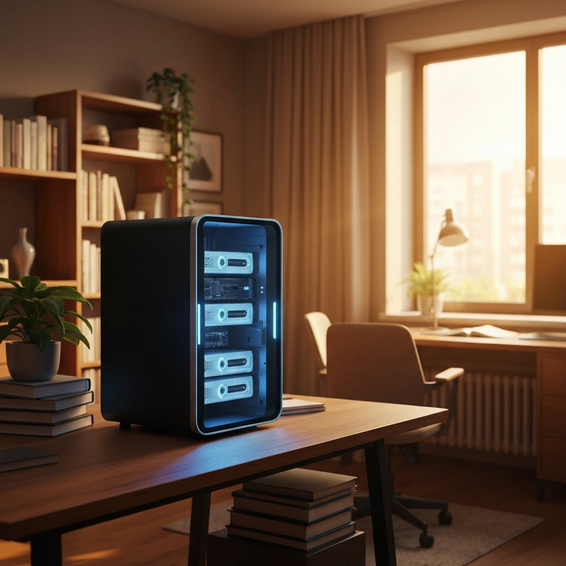
How to Run Your Own Cloud Server at Home: The Complete Guide
Sick of shelling out for Google Drive, Dropbox, or iCloud subscriptions every month? Figuring out how to run your own cloud server at home is one of the best ways to take back control of your digital footprint. Whether your goal is to lock down your privacy, cut out recurring expenses, or just dip your toes into IT networking, putting together a personal home server is a seriously rewarding project.
In this comprehensive guide, we will walk you through everything you need to know to get a robust, secure, and highly responsive private cloud off the ground. From picking out the right beginner-friendly hardware to configuring advanced tools like Nextcloud and Proxmox, you’ll have your own system up and running before you know it. Let’s explore the details of self-hosting.
Why Building a Home Cloud Server Solves the “Big Tech” Problem
The vast majority of us lean heavily on public cloud providers to manage our photos, documents, and backups. While it’s undeniably convenient, this setup creates a couple of glaring financial and technical issues. You’re effectively just renting hard drive space on someone else’s computer. That leaves your personal data at the mercy of sudden policy shifts, potential privacy breaches, and those ever-increasing subscription hikes.
At the heart of the problem is centralized infrastructure. Public clouds trap your files inside proprietary ecosystems, meaning if you ever want to migrate or upgrade your storage, you’re going to pay a premium. When you figure out how to run your own cloud server at home, you bypass that bottleneck entirely, shifting toward a self-reliant, decentralized setup.
Going the DIY route grants you total ownership of your data. You get to call the shots on storage limits, access levels, and security protocols. Plus, for developers, sysadmins, and general tech enthusiasts, it’s the ultimate sandbox for testing out self-hosted tools and homelab setup experiments.
Basic Solutions: Step-by-Step Guide to Your First Home Cloud
If you are a beginner, setting up a personal cloud storage system doesn’t mean you need to buy a massive enterprise server rack. You can actually get started with budget-friendly hardware and incredibly intuitive software. Follow these actionable steps to build your first private cloud.
- Choose Your Hardware: Start small with a repurposed laptop, a Raspberry Pi 4, or an Intel NUC. These tiny machines sip power while offering more than enough processing juice for basic file hosting and media streaming.
- Install a Lightweight OS: Put a reliable, server-centric operating system on your machine, like Debian or Ubuntu Server. Try to skip the heavy graphical desktop environments; running it via the command line saves system resources and keeps your uptime solid.
- Install Nextcloud: Nextcloud is practically the gold standard when it comes to personal cloud storage. It feels and acts just like Google Drive, except it lives on your own hardware. If you’re using Ubuntu, installation is as easy as running a single Snap command:
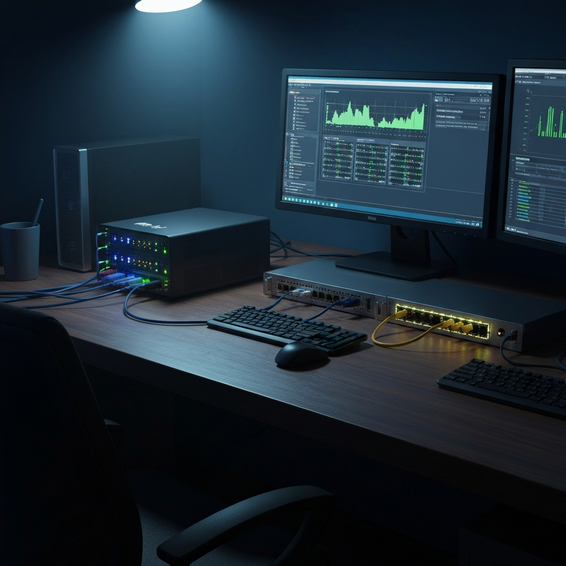
sudo snap install nextcloud. - Set Up Local Network Access: Track down your server’s local IP address and hop into your home router’s settings to assign it a static IP. This simple step ensures your cloud dashboard is always reachable from any smartphone or computer on your Wi-Fi network without the address shifting around.
- Connect External Storage: Need more room for massive backups or a movie library? Just plug in an external hard drive. Mount the drive via your Linux terminal, point Nextcloud to use it as the main data directory, and you instantly have maximum storage capacity.
Advanced Solutions for IT Professionals and DevOps
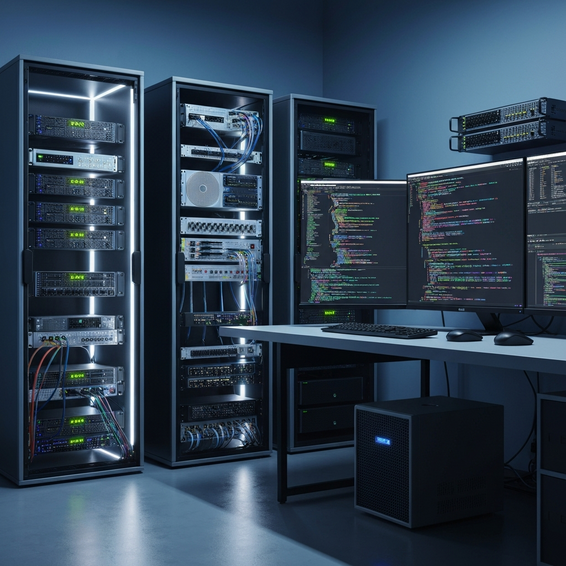
If you’re a software developer, sysadmin, or a homelab veteran, a basic bare-metal Nextcloud setup probably won’t scratch the itch. To build a highly available and scalable private cloud infrastructure, you’ll want to tap into modern containerization and enterprise-grade virtualization.
1. Virtualization with Proxmox VE
Rather than tossing an operating system directly onto bare metal, consider using a type-1 hypervisor like Proxmox VE. Proxmox lets you spin up lightweight LXC containers and multiple virtual machines (VMs) from one physical host. This means you can isolate your cloud server in one container, run a Plex media center in another, and handle network-wide ad blocking with Pi-hole in a third.
2. Containerized Cloud with Docker
Docker has fundamentally changed how we deploy software. Instead of fighting through tedious manual installations, you can spin up Nextcloud, Redis, and MariaDB all at once using a single docker-compose.yml file. This modular approach keeps your apps completely isolated, simplifies server backups, and ensures your exact environment can be perfectly reproduced on any other machine.
3. Secure Remote Access Infrastructure
Getting to your files from outside the house requires a secure tunnel. Whatever you do, try to avoid opening ports directly to the wild internet. Instead, set up a reverse proxy—like Traefik or Nginx Proxy Manager—to expertly manage your incoming traffic. For the ultimate in home server security, look into a WireGuard VPN or Cloudflare Tunnels (cloudflared) so you can access your internal data remotely without exposing a single router port.
Best Practices for Home Server Security and Performance
When you run a home server, you essentially become the chief of your own IT department. Keeping your hardware and network optimized is critical to fending off malicious attacks and preventing catastrophic data loss. Always stick to these core sysadmin best practices.
- Implement the 3-2-1 Backup Rule: Always maintain three distinct copies of your data, split across two different media types, with at least one copy safely stashed off-site. A private cloud is a fantastic tool, but it definitely isn’t a replacement for a true disaster recovery plan.
- Use RAID for Redundancy: If you’re leaning on Network Attached Storage (NAS) operating systems like TrueNAS, set up your drives in RAIDZ1 or RAID 1. This architecture ensures you won’t lose everything if a single physical hard drive decides to mechanically fail.
- Harden SSH Access: Completely disable password authentication and default root logins. Instead, force all remote access to your server to use highly secure cryptographic SSH keys.
- Invest in a UPS: An Uninterruptible Power Supply (UPS) provides your hardware with a temporary battery lifeline during neighborhood power blips. Giving your server enough time to gracefully shut down is the best way to prevent severe database corruption.
- Automate Routine Updates: Turn on automated security patching in your Linux terminal using
unattended-upgrades. Consistently updating your Docker images and cloud apps is the easiest way to patch publicly known vulnerabilities.
For a deeper dive into advanced management techniques, check out our comprehensive guides on homelab setups to help streamline your daily automation and pick up some new DevOps workflows.
Recommended Tools and Resources
Putting together a snappy, high-performance home server means picking the right equipment. Here are our top professional hardware and software recommendations to help get your self-hosting project off the ground effectively.
- Mini PCs (Hardware): Devices like the Beelink Mini PC or an Intel NUC are fantastic choices. They are incredibly compact, whisper-quiet, and barely draw any power—making them perfect for 24/7 self-hosted cloud servers.
- Storage Drives: Look into the Seagate IronWolf NAS HDD or Western Digital Red drives. Unlike standard desktop equipment, NAS-rated mechanical hard drives are purpose-built to spin continuously for years without failing.
- Cloud Software: Go with Nextcloud for all-around file syncing, ownCloud if you prefer enterprise-style document sharing, or Seafile if lightning-fast synchronization speeds are your top priority.
- Operating Systems: TrueNAS Scale is amazing for managing massive storage pools, while Ubuntu Server offers arguably the best ecosystem for running general-purpose self-hosted tools and Docker containers.
Frequently Asked Questions (FAQ)
Is it safe to run my own cloud server at home?
Yes, but it absolutely requires diligent and ongoing maintenance. The security of your home server hinges on enforcing SSH keys, using incredibly strong passwords, keeping software updated, and relying on a VPN or reverse proxy rather than exposing raw ports directly to the public internet.
Does a home cloud server consume a lot of electricity?
This really depends on the hardware you choose. A modern Mini PC or a Raspberry Pi will typically draw between 5 to 15 watts under load, which translates to just a few bucks a year to run. On the flip side, repurposing an old gaming desktop or an aging enterprise rack server will pull significantly more power, which you’ll definitely notice on your monthly electric bill.
Do I need a static IP address from my Internet Service Provider?
Nope, you don’t need one. The vast majority of residential internet connections use dynamic IPs that change from time to time. You can easily get around this by using a Dynamic DNS (DDNS) service like DuckDNS to track the changes automatically, or you can bypass the IP issue altogether with zero-trust solutions like Cloudflare Tunnels.
Can I access my private home cloud from my smartphone?
Absolutely. Modern platforms like Nextcloud offer beautifully designed, dedicated apps for both Android and iOS. Once you link your server to a custom domain name and secure it with a free Let’s Encrypt SSL certificate, the mobile app will automatically sync your files, videos, and photos exactly like Google Photos or iCloud.
Conclusion
Taking the plunge and figuring out how to run your own cloud server at home is a highly fulfilling technical journey. Not only do you finally break the cycle of Big Tech’s recurring monthly subscription fees, but you also regain uncompromising, absolute control over your personal data and digital privacy.
Whether you opt for a quick Nextcloud instance on a budget-friendly Raspberry Pi or decide to build a high-availability Docker cluster using Proxmox, the long-term payoff completely eclipses the initial learning curve. Start small, place a heavy emphasis on establishing rock-solid backups, and gradually expand your self-hosted infrastructure as you get more comfortable.
Before long, your new private cloud will serve as the indispensable backbone of your entire digital life. Do you have any specific questions about hardware compatibility, or are you running into a wall with your network configuration? Drop a comment below and let’s get your homelab server online today!
About the Author